Logo background remover
Cut a logo out of its white or solid-color background and get a clean, transparent PNG trimmed to the artwork, the best starting point for an embroidery file. White details inside the logo stay.
Drop a logo to remove its background
PNG, JPG, WebP, GIF, BMP or SVG · processed in your browser
Made for logos and flat artwork
Finds the background
Reads the color around the edges; it has to surround the artwork, not just one side.
Keeps inner whites
White letters and shapes inside the logo aren't touched, only what connects to the outside.
Trims to the artwork
Empty margins are cut away, so the PNG is exactly the logo.
Clean edges
Anti-aliased edges are smoothed so there's no halo of background color.
Transparent PNG
Download it for print, the web or any digitizing software.
One click to digitize
Open the result in the digitizer to make a file for your machine.
For the cleanest cut-out
- Use the largest version of the logo you have; small images leave jagged edges.
- Avoid JPGs saved many times: compression noise around the edges can survive as speckles.
- If the background is a gradient or a photo, crop or flatten it first.
- Already have a transparent PNG? It's kept as is and just trimmed.
Free account
Start digitizing in under a minute
Create a free account to digitize any image, try every setting and watch it sew. Choose a plan only when you want to download files.
- Digitize and preview any image
- Realistic stitch preview and sew-out
- Download free ready-made designs
- No credit card needed



Questions
The quickest way to see what it does with your artwork is to try it. With a free account, digitizing and previewing cost nothing and take about a minute.
How do I remove a white background from a logo?
Drop the logo into the tool. It finds the background color around the edges, removes it everywhere it touches the outside, trims the image to the artwork and gives you a transparent PNG. White shapes inside the logo, like letters, are kept.
Does it work on photos?
It's made for logos, clip art and drawings on a plain background. Photos with busy or gradient backgrounds need a photo editor first.
Why does embroidery need a transparent background?
Anything that isn't background gets stitched. A white box around a logo becomes a white fill on the garment, so the background has to be removed or marked before digitizing.
Is my logo uploaded?
No. It's processed in your browser and never leaves your device.
Can I digitize the result?
Yes. Press Digitize this image to open the transparent logo in the digitizer.
More tools
Keep going
 GuideHow to prepare an image for embroidery digitizingA checklist for turning a logo or picture into artwork that digitizes cleanly.Read the guide
 GuideHow to digitize a logo for embroideryA practical walk-through from logo file to tested embroidery file, and when a professional digitizer is worth it.Read the guide
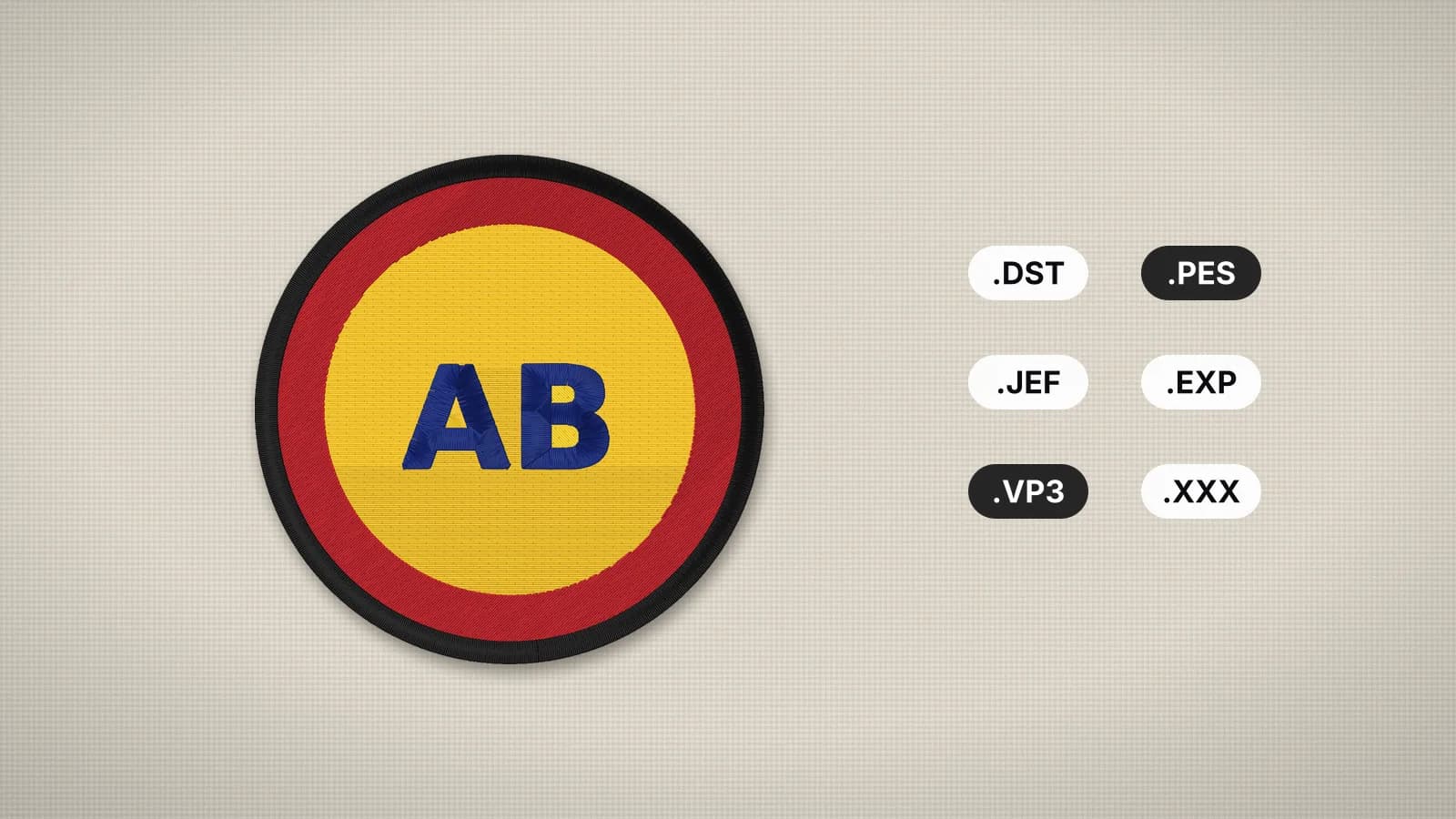 GuideEmbroidery file formats explainedWhat each machine embroidery format is, which machines read it, and how to pick and convert the right one.Read the guide
 Free previewEmbroidery file converterConvert PES, DST, JEF, EXP, VP3 and XXX files to any other machine format.Open
 Free toolEmbroidery file viewerOpen DST, PES, JEF and more in your browser: stitch preview, colors, size and stitch count.Open
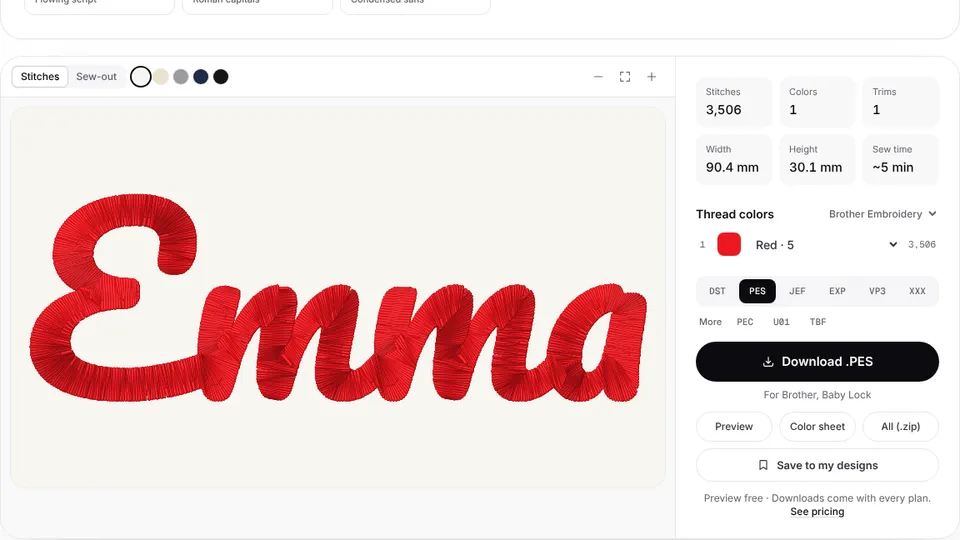 Free previewText to embroidery fileType a name or monogram, pick a font and download a ready-to-sew lettering file.Open
Clean logo, clean stitches
Digitize the transparent logo into a DST, PES or JEF file with satin borders and underlay.