Most embroidery problems come from one of three places: the file, the hooping and stabilizer, or the machine and thread. Puckering is usually the hooping. Gaps and fabric showing through often start in the file. Birdnests under the throat plate are almost always the machine. Knowing which is which saves a lot of unpicking.
Start with the table below, then read the section for your problem. If you haven't digitized yet, the embroidery image checker catches many artwork problems before they reach the fabric.
Embroidery problems, causes and fixes at a glance
| Problem | Common causes | Fix | Where the fix is |
|---|---|---|---|
| Puckering around the design | Backing too light; fabric stretched in the hoop; design too dense | Cut-away on knits, hoop flat, lighter density | Hooping first, then the file |
| Gaps or fabric showing through | Fill too light for the fabric; stitches sinking into pile; no overlap between colors | Slightly denser fill, topping, heavier underlay | The file, plus a topping |
| Thread breaks or shreds | Worn needle; tension too tight; old thread; a snag in the thread path | New needle, rethread, check tension and thread | Machine and thread |
| Birdnesting under the plate | Top thread not seated in the tension discs; bobbin in wrong | Rethread with the presser foot up; reseat the bobbin | Machine |
| Outlines out of register | Fabric shifting; too little pull compensation | Firmer backing, better hooping, more pull compensation | Hooping and the file |
| Text too small to read | Letters under about 5 mm; strokes too thin | Bigger text, a bolder font, a topping on texture | The file |
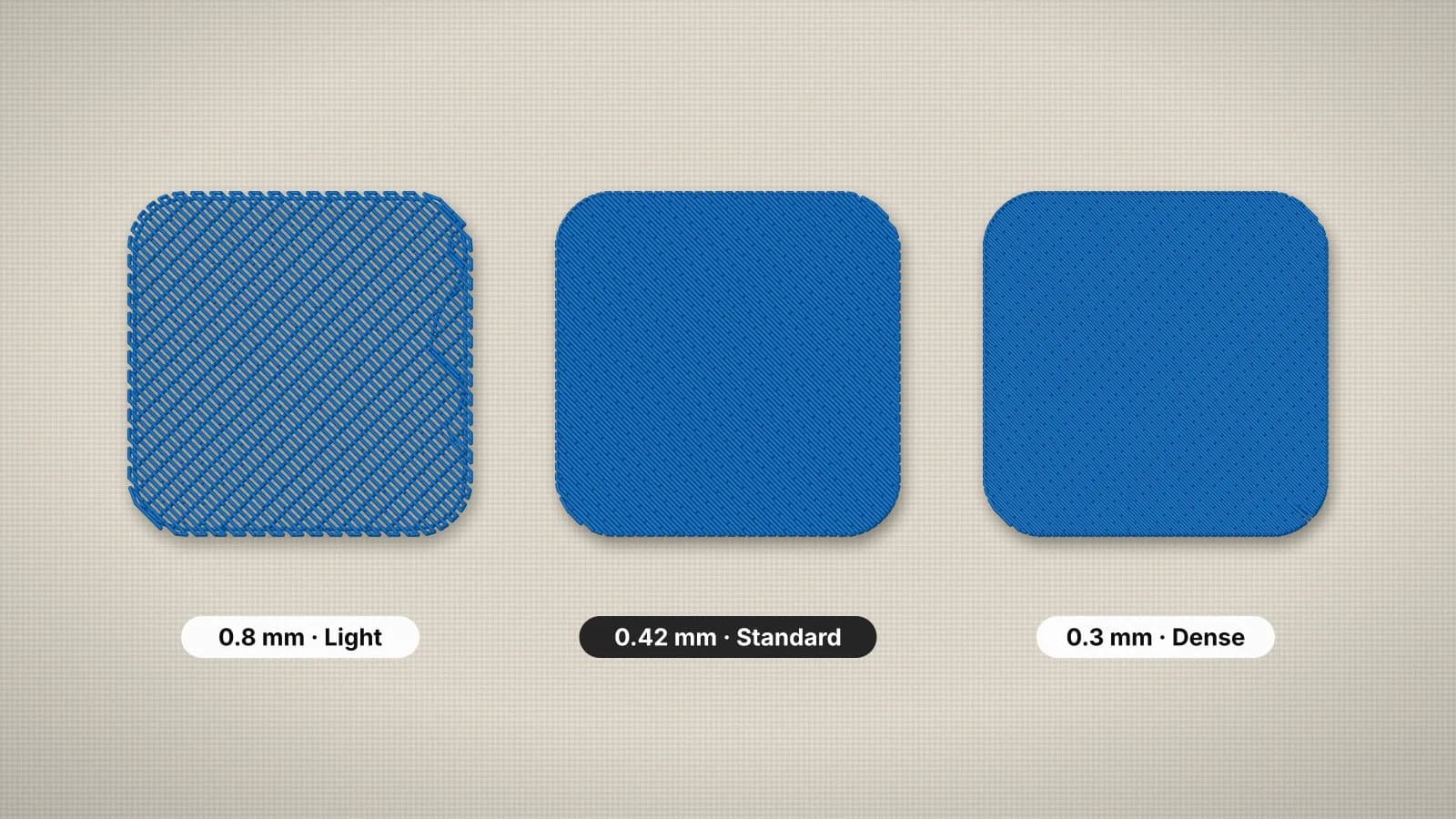
| Design too dense or stiff | Fill spacing too tight; a file shrunk after digitizing | Lighter density; digitize again at the new size | The file |
| Bobbin thread on top | Top tension too tight or bobbin tension too loose | Adjust the tension; clean the bobbin case | Machine |
Change one thing at a time and test on scrap of the same fabric. If you change the backing, the tension and the file at once, you won't know which one fixed it.
Puckering, shifting and outlines out of register
Every stitch pulls the fabric in a little. When the fabric isn't held firmly enough, those pulls add up: the fabric gathers around the design, and later colors land slightly off the earlier ones, so outlines miss their fills.
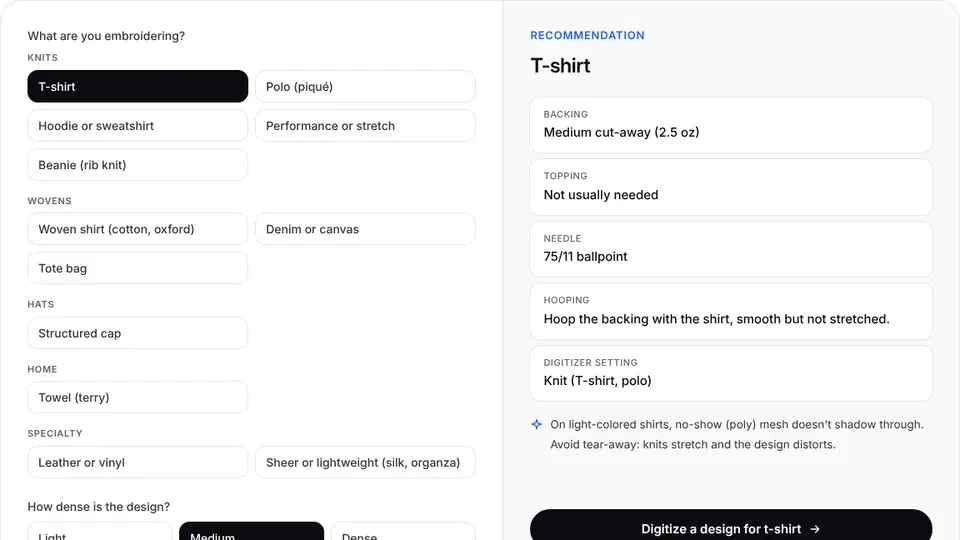
- Match the backing to the fabric. Anything that stretches needs cut-away; tear-away alone is a common cause of puckered T-shirts and hoodies. The embroidery stabilizer finder suggests one for your fabric.
- Hoop flat, not stretched. A knit pulled tight in the hoop relaxes afterwards and gathers around the stitches. Don't tug the fabric after hooping either.
- Use the smallest hoop that fits. It holds the fabric tighter, and bond slippery fabric to the backing with a fusible or spray adhesive.
- Check the file. Pull compensation widens each shape slightly so it still meets its neighbor after the fabric pulls in, and the knit and stretch presets add more of it. Neighboring colors should overlap a little; the digitizer uses 0.3 mm.
The stabilizer guide has a fabric-by-fabric backing chart.
Try it with your own design
Sign up free, upload an image and get a stitch preview in under a minute.
Drop your image here
PNG, JPG, WebP or SVG · stays on your device
Gaps and fabric showing through
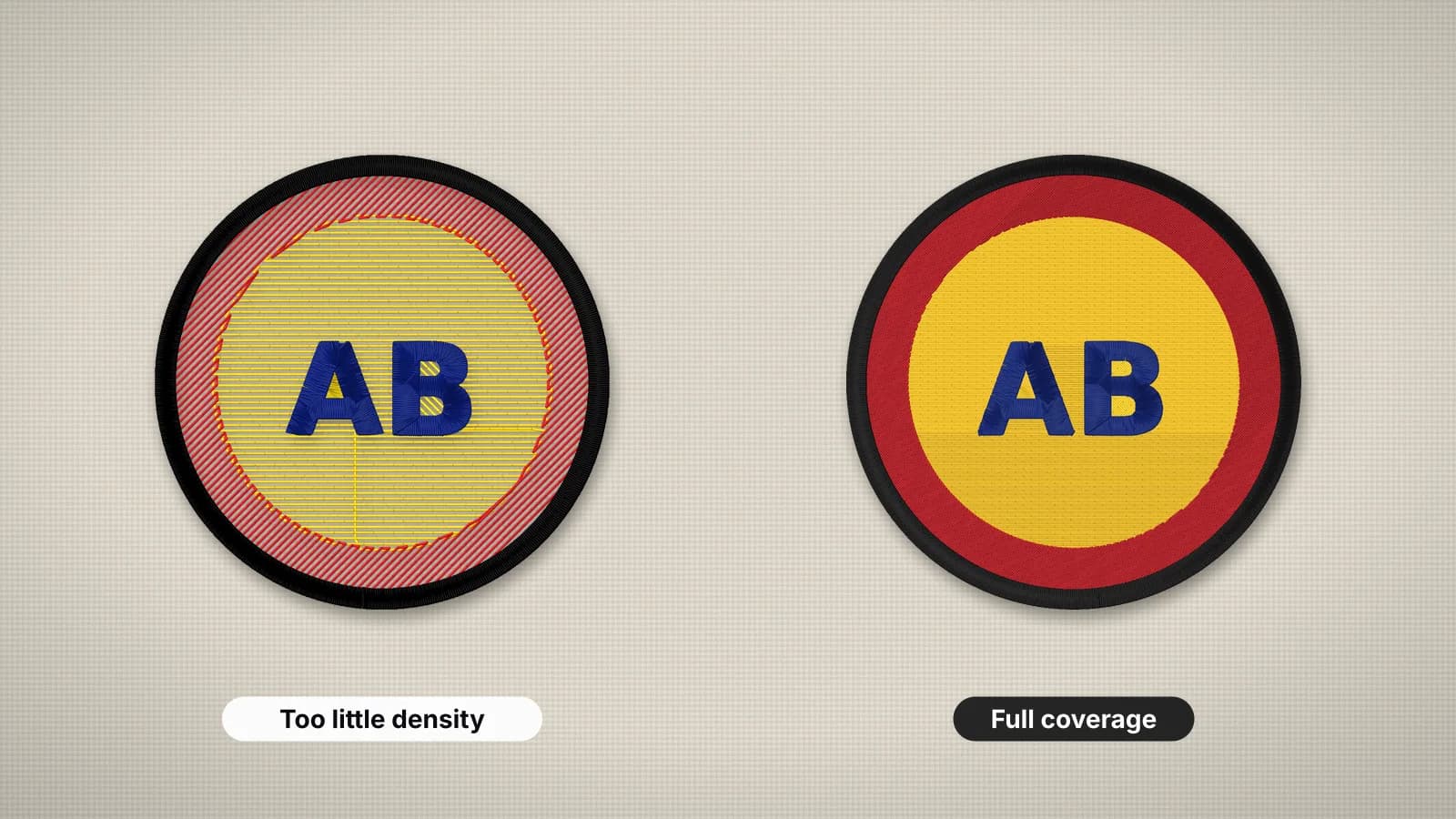
If you can see fabric between rows of fill, the stitches are too far apart for that fabric and thread, or they're sinking into the surface. Color matters too: light thread on dark fabric shows gaps that the same file hides in a matching color.
- Textured fabric: on fleece, towels and piqué, a water-soluble topping and heavier underlay keep the stitches on top. Choose the fleece preset for fleece and towels.
- Fill too light: tighten the fill spacing a step, for example from 0.45 to 0.4 mm. The density guide explains the trade-off.
- Thin lines between colors: the colors need to overlap so small shifts don't open a gap. Firmer hooping helps too.
- Finer thread than the file expects: a file made for 40-weight thread covers less when sewn in 60-weight.
Thread breaks, shredding and birdnests
These are machine and thread problems, and a new file rarely fixes them.
- Change the needle first. A dull, bent or burred needle is a very common cause of breaks and shredding. Many embroiderers change it every 8–10 hours of stitching, and straight away after it hits a hoop or a pin.
- Rethread the top with the presser foot up, so the thread seats in the tension discs. A birdnest, a wad of thread under the throat plate, almost always means the top thread missed the tension.
- Check the bobbin. It should sit the right way round in its case and unwind smoothly. Clean lint out of the bobbin area regularly.
- Look at the thread. Old, dry thread snaps, and a spool that catches on its notch jerks the thread. Metallic thread needs a slower speed and a larger-eye needle.
If thread keeps breaking at the same spot in the design, look at the file there. A tight cluster of stitches, such as several layers piled on one small area, can shred thread no matter what you change on the machine.
Text too small, and designs too dense or stiff
These two start in the file, so the fix is in the file too.
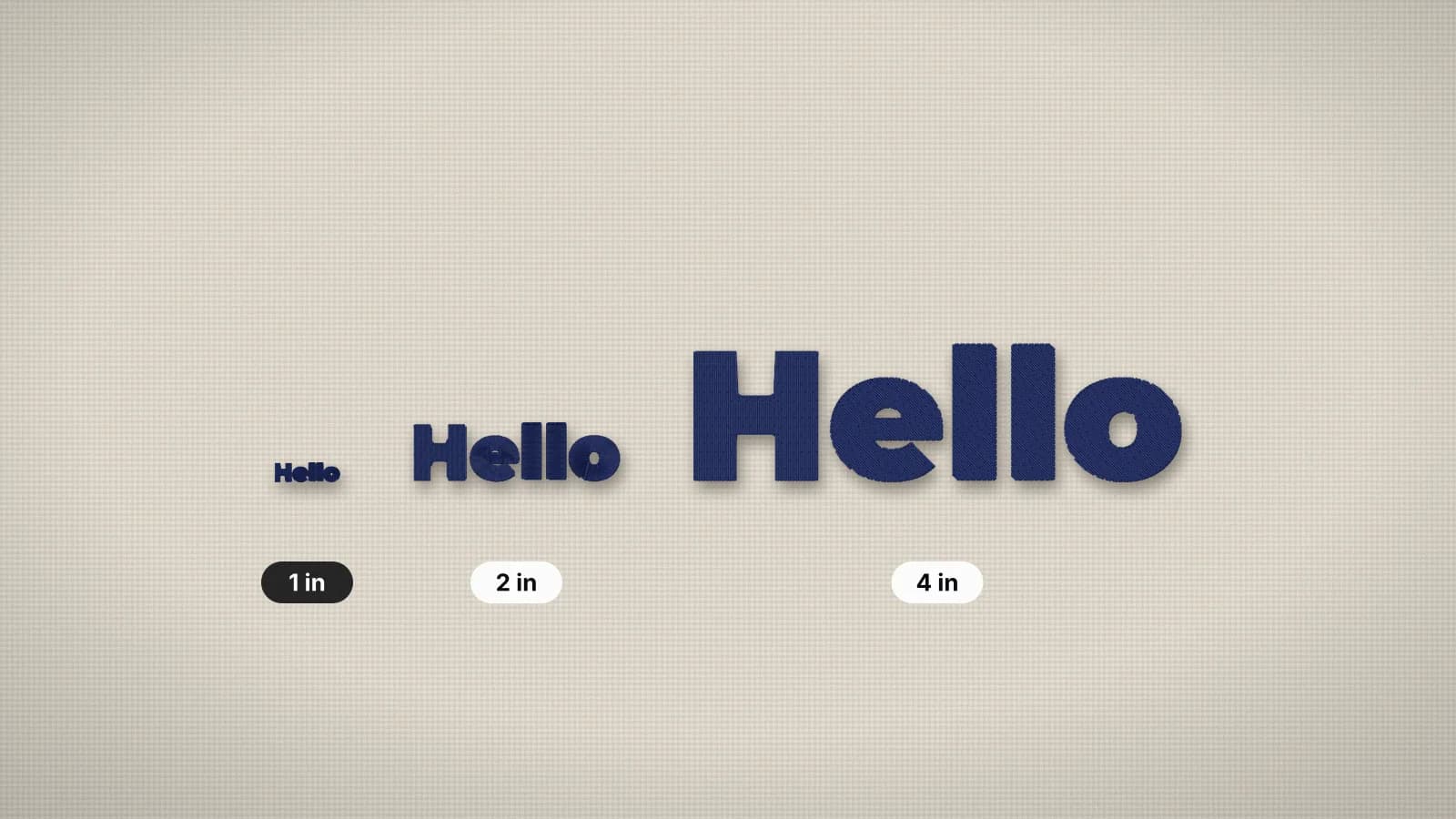
Small text. Thread has width and spreads slightly, so lettering under about 5 mm tall closes up, and strokes under about 0.8 mm can't form a clean satin column. Make the text bigger, choose a bolder font or drop the tagline. On fleece, towels and piqué, add 1–2 mm and use a topping. The small text guide covers sizes by font.
Too dense or stiff. A design that feels like armor, bends needles or perforates the fabric has too many stitches for its size. The usual causes are fill spacing too tight for the fabric, a large solid background, or a stitch file shrunk after digitizing: scaling one down by more than about 10% packs the same stitches into less space. Lighten the fill, swap big solid areas for outlines or open shapes, and digitize again at the new size.
Catch file problems before you sew
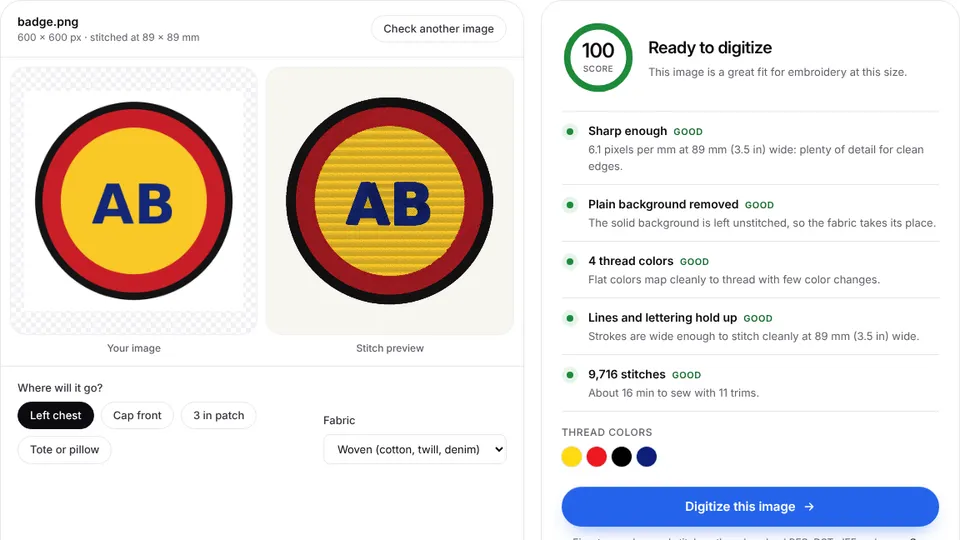
- Check the artwork in the image checker. It flags fine detail, too many colors and low resolution before you digitize.
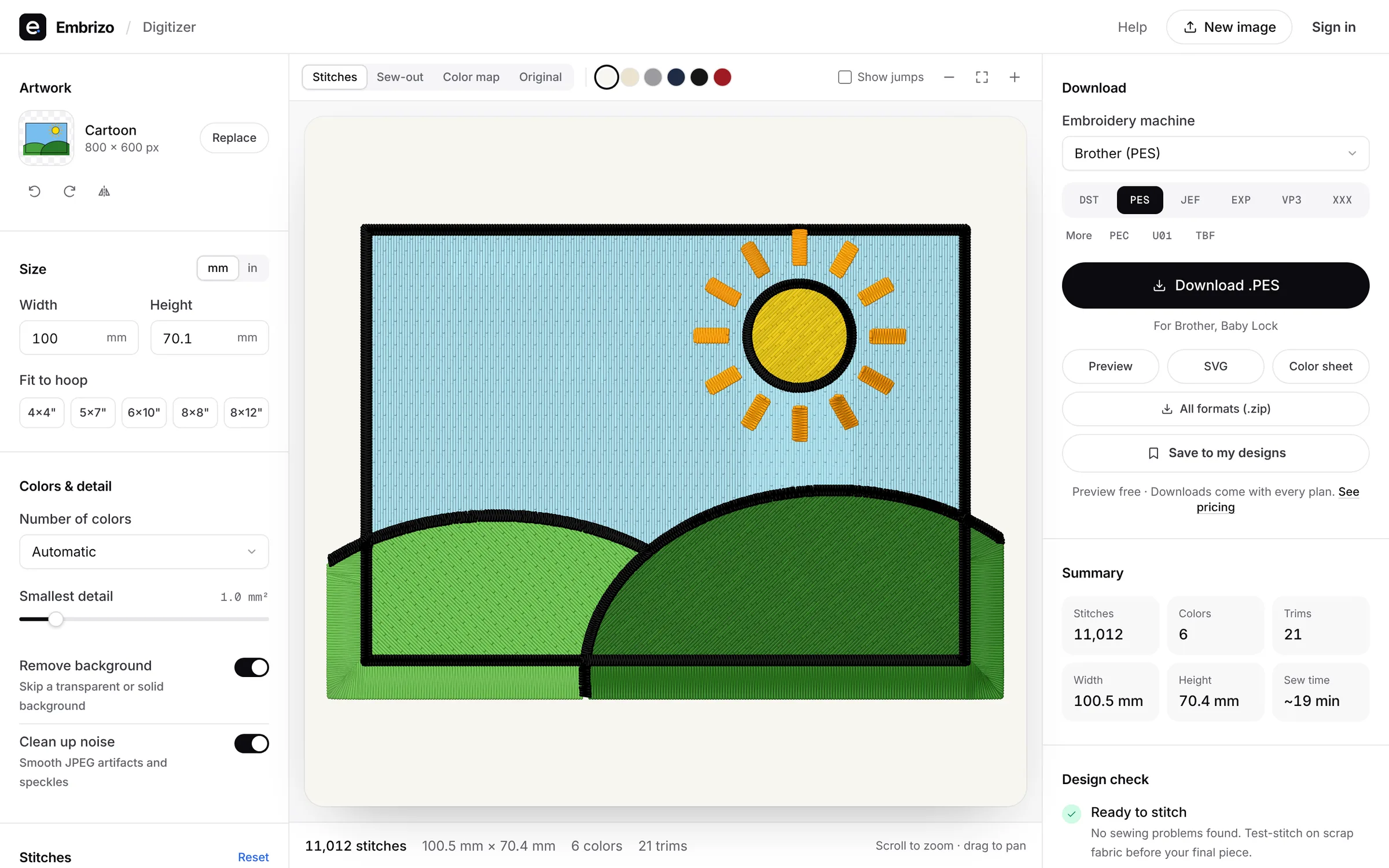
- Open the digitizer, add the image and set the final size first. Every other check depends on it.
- Pick the fabric preset. It sets underlay, pull compensation and density for knits, stretch fabrics, fleece and leather, which heads off many puckering and gap problems.
- Read the design check. It flags details under about 0.8 mm, lettering under about 5 mm, more than 12 colors, very high stitch counts and designs larger than an 8×12 in field.
- Look at the stitch count and sew time. A count far above similar designs often means a fill denser than it needs to be.
- Sew a test on scrap of the same fabric with the same backing, then adjust one thing at a time.