You've digitized a design or bought one, and it's sitting in your computer's downloads folder. The last step, getting it into the machine, trips up more people than you'd expect: the machine shows an empty list, ignores the stick or can't find the file inside a folder.
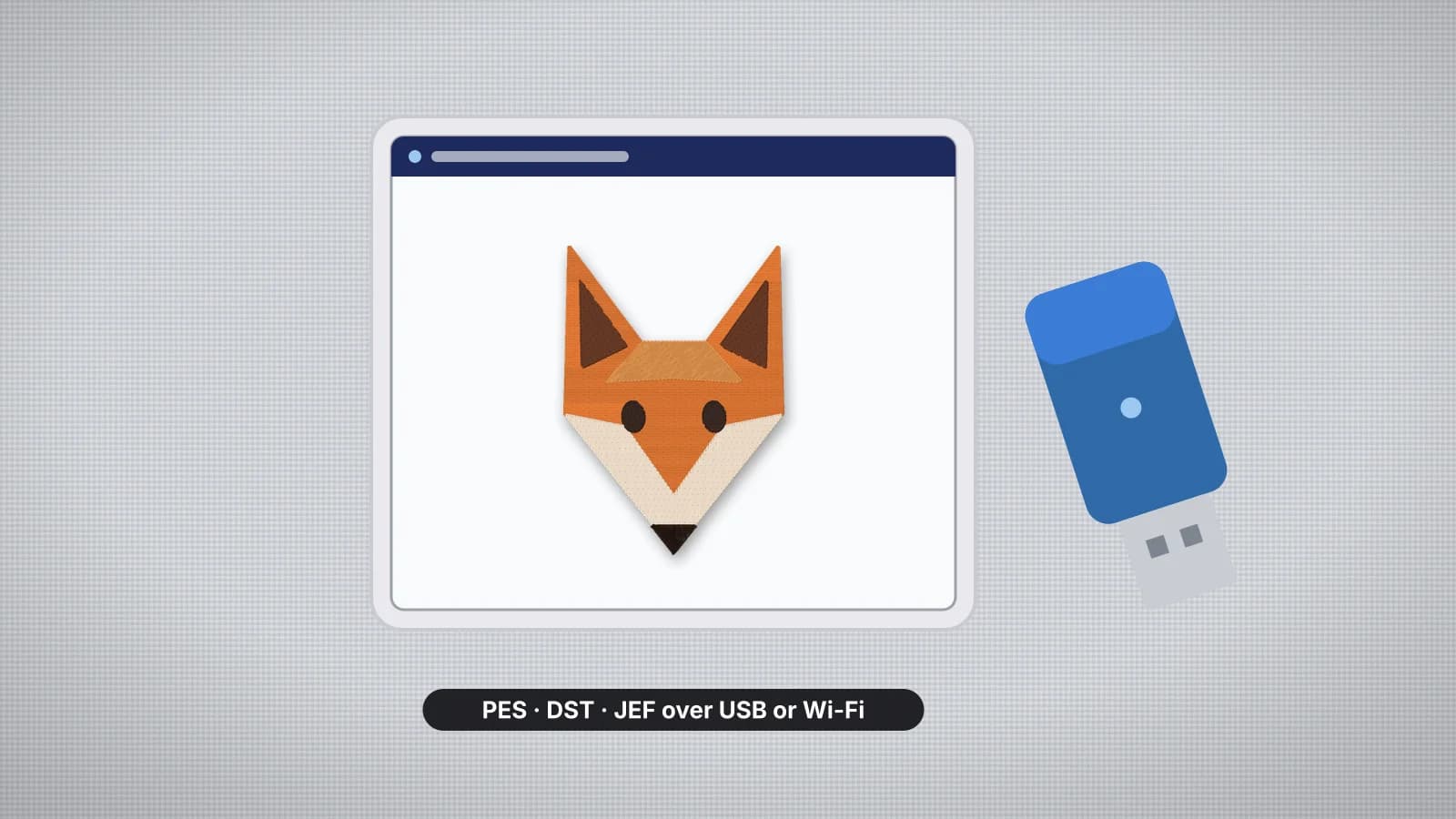
Almost every home and commercial machine takes designs from a USB stick, and newer models add Wi-Fi apps or a cable to a computer. This guide covers the USB basics that work everywhere, then the options for each brand. If you still need the file itself, the digitizer turns a logo or drawing into your machine's format, and the machine pages list the format each brand reads.
Three ways to get a design onto a machine
| Method | How it works | Good to know |
|---|---|---|
| USB stick | Copy the file to a flash drive, plug it into the machine and open the design on screen | Works on almost every current home and commercial machine; the safest default |
| Wi-Fi or wireless LAN | Send the design from the maker's app or software on a phone, tablet or computer | Only on wireless models, and only with the maker's own apps; check the compatibility list for your model |
| Cable to a computer | Connect the machine to a computer with a USB cable, or a network cable on many commercial machines, and send the design from software | Common on some older home machines and on commercial machines run from a PC |
Whichever route you use, the file has to be in a format the machine reads, and formats are brand specific: PES for Brother and Baby Lock, JEF for Janome, EXP for Bernina, VP3 for Husqvarna Viking and Pfaff, XXX for Singer Futura models and DST for commercial machines. The embroidery file formats guide explains the differences, and the file converter turns a design you already have into another format.
USB stick: format, file names and folders
- Use a small, plain stick. Many machines, especially older ones, don't read large or newer sticks, so a modest stick kept just for embroidery is the safest choice. Janome, for example, gives 16 GB as the largest stick for the Memory Craft 500E.
- Format it as FAT32. On Windows, right-click the stick in File Explorer, choose Format and pick FAT32. On a Mac, open Disk Utility, select the stick, click Erase and choose MS-DOS (FAT). Formatting erases everything on the stick, so copy off anything you need first.
- Unzip the download. Designs often come as a ZIP holding several formats. Extract it on your computer and copy only the file for your machine; machines can't open ZIP files.
- Copy the design to the top level, not into a folder. Some machines, such as the Brother SE600 and PE800, read designs only from the top level of the stick.
- Keep file names short and simple: letters, numbers, hyphens and underscores. Some older machines cut off long names or skip unusual characters.
- Eject the stick from your computer before you pull it out, then insert it in the machine and open the design from the embroidery screen.
Windows usually offers FAT32 in its Format window only for sticks of 32 GB or smaller, which is one more reason to keep a small stick for embroidery.
Keep the number of designs on the stick manageable, with a clear name for each, such as the customer and the placement. A long list is slow to scroll on a small screen. If the machine still doesn't list your design, the troubleshooting guide goes through every cause and its fix.
Try it with your own design
Sign up free, upload an image and get a stitch preview in under a minute.
Drop your image here
PNG, JPG, WebP or SVG · stays on your device
Brother and Baby Lock (PES)
Brother and Baby Lock machines read PES, and many also read DST and PHC. A USB stick works on nearly all of them. Wireless models add more options, and a few models use a cable instead:
- Artspira, Brother's free app, sends designs to compatible machines over Bluetooth or wireless LAN. Brother lists models such as the SE700, SE2000, PE900 and Luminaire XP3 as compatible; on the PE900 it sends designs up to 5 × 7 in.
- Design Database Transfer, a free Windows app, sends files from a computer to wireless LAN models such as the SE2000, NQ1700E and PR680W. Baby Lock offers it for its wireless LAN machines too, and Brother's PE-Design 11 software can also send designs over the network.
- A cable on a few models. The Brother SE400 has no USB stick port: it connects to a computer by USB cable and shows up as a removable disk holding up to 12 designs, which are lost at power-off unless you save them to the machine's memory. The Baby Lock Alliance and Journey take a USB stick or a USB cable.
If an older Brother or Baby Lock doesn't show a PES file, try the PEC or DST file from the same download. Very old models may not read newer PES versions.
Janome (JEF)
Janome machines read JEF, and some models also list JEF+, JPX or DST. Copy the .jef file to a small FAT32 stick, plug it in and open the design from the embroidery screen, then attach the hoop the machine asks for. A JEF file records the smallest standard Janome hoop the design fits.
- Embroidery-only models such as the Memory Craft 400E and 550E load designs from a USB stick.
- Wireless models can receive designs from Janome's apps, such as AcuDesign for iOS, or from Artistic Digitizer, Janome's desktop software for Windows and Mac, with the device and the machine on the same network. The Skyline S9 takes designs over Wi-Fi from a computer or the AcuEdit iPad app.
- The [MB-7](/machines/janome/mb-7) multi-needle takes a USB stick or connects to a PC with its included USB cable.
Husqvarna Viking, Pfaff and Singer (VP3 and XXX)
Husqvarna Viking, Pfaff and Singer are sister brands, and their mySewnet platform supports machines from all three.
- Husqvarna Viking and Pfaff machines read VP3 from a USB stick. mySewnet-connected models can also open designs from the mySewnet Cloud folder on screen: open the VP3 in mySewnet Embroidery Software, send it to the cloud and it appears on the machine. The Designer Ruby 90 and Pfaff creative icon 2 connect over Wi-Fi with mySewnet.
- Singer Futura models use XXX and connect to a computer by USB cable: open the design in the Futura software and send it to the machine. The software was written for older versions of Windows, so check Singer's support pages for updates.
- The Singer [Legacy SE300](/machines/singer/legacy-se300) reads .xxx and .dst files from a USB stick and ignores other formats. The SE9180 reads VP3 from a stick, and Singer says it isn't Wi-Fi enabled; the SE9185 can receive designs over Wi-Fi through mySewnet.
Bernina (EXP)
- Copy the .exp file to a USB stick formatted as FAT32. Dealers often recommend smaller, simpler sticks, since some machines struggle with large or newer ones.
- If the design came with .INF and .BMP files of the same name, copy them next to the .exp. The INF file holds the thread colors and the BMP a preview image.
- Insert the stick and open the design on the machine.
Current Bernina machines such as the 790 PRO, 590 and 535 read EXP and several other formats, including DST, PES and JEF. For wireless transfer, BERNINA Embroidery Software 9 sends designs over Wi-Fi: some machines, such as the 790 PRO, have Wi-Fi built in, and the separate BERNINA WiFi Device adds it to many other machines with a USB socket. On the 790 PRO, the BERNINA Stitchout app reports thread breaks, an empty bobbin and color changes.
Commercial multi-needle machines (DST)
| Brand | How designs get there |
|---|---|
| Tajima | USB memory at the control panel on current machines; many shops also send designs over a network from Tajima DG/ML by Pulse or other software. The SAI connects to a PC by USB cable, and its included Tajima Writer PLUS software sends designs over a LAN connection. |
| Ricoma | A USB stick at the touchscreen. The EM-1010 also takes designs over a LAN cable from a PC, and the MT-1501 over a network connection or Wi-Fi. |
| Melco | Usually sent from Melco's machine software on a connected computer. The SUMMIT can load designs from a network folder. |
| Barudan | USB memory on newer machines. Networked shops can save designs into a watch folder of Barudan's LEM server system, which passes them to the machines. |
| Brother PR series | A USB stick, or Design Database Transfer over wireless LAN; the PR680W also works with the Artspira app. |
DST stores no thread colors, so keep the color sheet with each design and set up the needles from it. Name files so the right one is easy to pick on the panel, such as the customer and the placement. Ready to make the file? Digitize your logo with a free account, choose DST or your machine's format and download it with a plan.