 Free toolMachine compatibility checkerPick your machine and drop a file: see if it reads the format and fits the hoop, and how to fix it if not.Open the tool
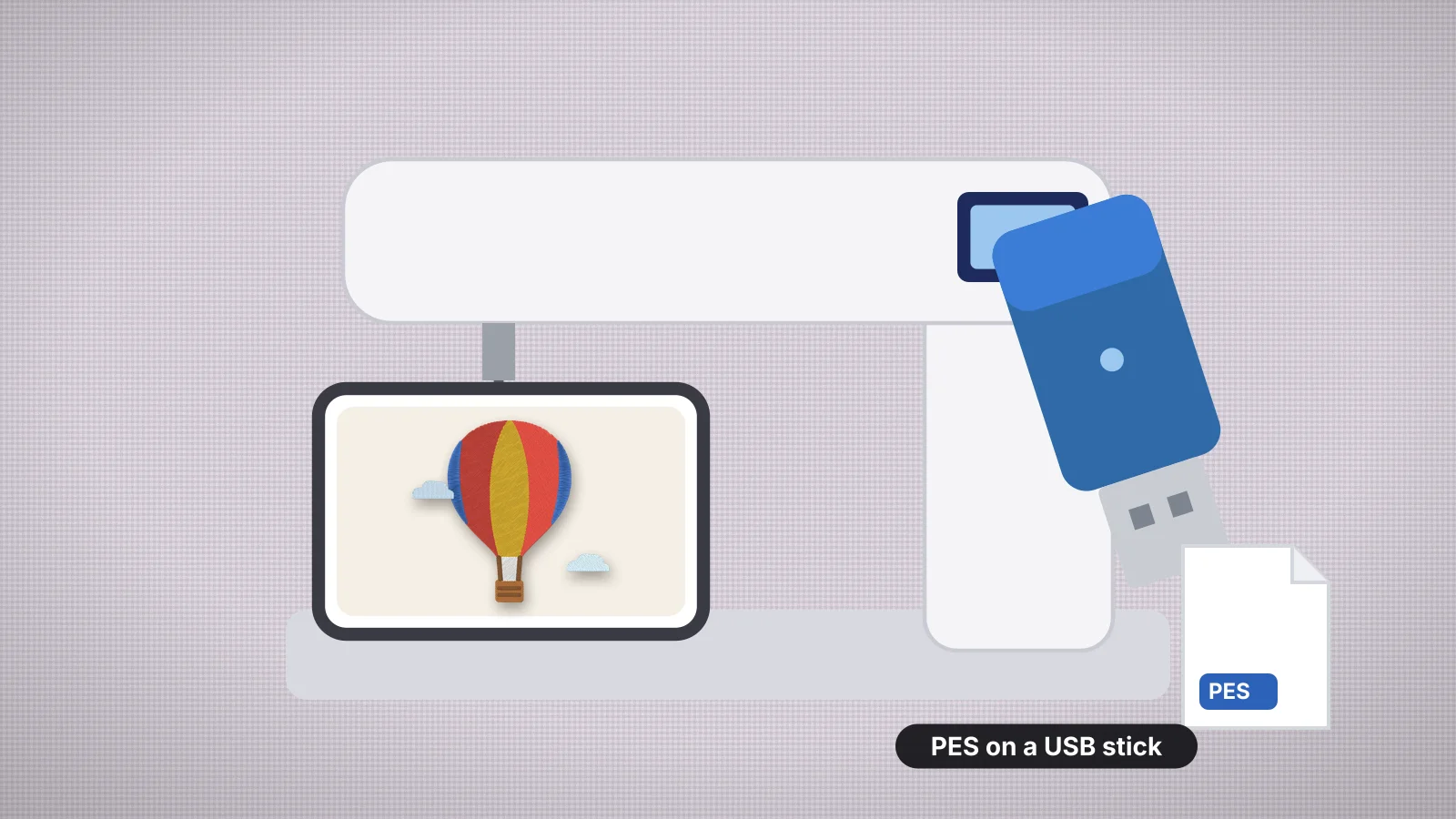
Baby Lock machines use PES, the same format as Brother, so a PES file made for one works on the other. Designs go in on a USB flash drive on almost every model, wireless LAN models add a Windows app, and a few larger machines also take a USB cable.
This guide covers the formats, the flash drive, wireless transfer, cable models, size and stitch limits, and what to check when a design won't show. Facts come from Baby Lock's instruction guides and spec sheets, collected on the Baby Lock machines page.
Which file formats do Baby Lock machines read?
PES is the format to use on a Baby Lock. The instruction guides list .pes, .phc and .dst for models such as the Verve, Bloom, Flare and Pathfinder, and .pes, .phc, .phx and .dst for the Altair 2, Solaris Vision and Array.
| Format | What to know |
|---|---|
| PES | Stitches, Brother palette thread colors and the thumbnail the screen shows. The same file works on Brother machines |
| DST | Read by every model here, but the Bloom guide says it's listed by file name only, without a picture, and shown in Baby Lock's default thread colors. Check the preview and change the colors as needed |
| PHC, PHX | Baby Lock and Brother formats. The Bloom saves any design you edit and store as a .phc file |
| PEC | The machine part of a PES file. Baby Lock's product pages list it for some models, such as the Alliance and Journey |
If a design is in another format, convert it: DST to PES for commercial designs, JEF to PES for Janome files and VP3 to PES for Husqvarna Viking and Pfaff files. The batch converter does a whole folder at once.
Older Baby Lock models may only read older PES versions. If a PES file from a new design shop doesn't show up on an older machine, try the PEC or DST file from the same download, or convert the design again to PES version 1.
How to set up the USB flash drive
- Use a small, plain flash drive kept for embroidery. Baby Lock says commercially available drives work but some may not be usable, so once you find one your machine reads, stick with it.
- Format it as FAT32. On Windows, right-click the drive in File Explorer, choose Format and pick FAT32. On a Mac, use Disk Utility, Erase and MS-DOS (FAT). Formatting erases the drive.
- Unzip the download and copy only the .pes file. The machine can't open a ZIP.
- Folders are fine on current models. The Bloom guide says that if the design is in a folder on the drive, you touch the key for that folder. Designs the machine saves to the drive go into a folder named bPocket.
- Keep names simple. Baby Lock recommends only the letters A to Z in upper and lower case, the numbers 0 to 9, hyphens and underscores in file and folder names.
- Eject the drive from your computer, plug it into the machine's USB port and choose the USB drive on the screen where you retrieve saved designs.
A Mac can leave small hidden files starting with ._ next to your designs, and some machines list them as designs that won't open. Ignore them, or delete them from the drive.
Try it with your own design
Sign up free, upload an image and get a stitch preview in under a minute.
Drop your image here
PNG, JPG, SVG, PDF or AI · stays on your device
Not sure what to expect? See real examples or how it works.
Wireless transfer with Design Database Transfer
Wireless LAN models receive designs from Design Database Transfer, Baby Lock's free program for Windows 8.1, 10 and 11. It shows your design library, searches it by name, format, stitch count or size, and sends .pes, .phc, .phx and .dst files to the machine. It reads many other formats for viewing but doesn't convert them.
- Machines. Models with wireless LAN include the Aurora, Bloom, Flare, Altair 2, Solaris Vision and Array. The machine and the computer need to be on the same network.
- Palette software. The Bloom guide says Baby Lock's Palette embroidery software, version 11 or later, can also send designs to the machine wirelessly and receive designs edited on it.
- Mac. Design Database Transfer runs on Windows only. Baby Lock says Mac owners need a Windows partition or a program that runs Windows apps, and its product support covers Windows only.
- Save what you send. Designs that arrive over wireless LAN are deleted from the machine when you turn it off, so save them to the machine's memory if you want to keep them.
The IQ Intuition Positioning app for phones and tablets does something different: it sends a photo of the hooped fabric to machines such as the Altair 2 and Meridian 2, so you can place a design on screen. It moves images, not stitch files.
Baby Lock machines with a USB cable
- [Alliance](/machines/baby-lock/alliance) and [Journey](/machines/baby-lock/journey) take a USB flash drive or a USB cable to a computer through a Type B port.
- [Pathfinder](/machines/baby-lock/pathfinder), [Capella](/machines/baby-lock/capella) and [Array](/machines/baby-lock/array) come with a USB cable for a computer as well as reading flash drives.
- Over the cable, copy to the top level. On the Capella, the machine shows up on the computer as a removable disk, and its manual says designs placed in folders there can't be opened.
Design size and stitch limits by model
A design has to fit the hoop you attach and the machine's largest field. The Bloom guide, for example, gives its maximum embroidery size as 180 × 130 mm (7 × 5 in), the same as its 5 × 7 in hoop. The table lists the largest field of each model on the site; leave a few millimeters clear at each edge.
| Largest field | Baby Lock models |
|---|---|
| 4 × 4 in (100 × 100 mm) | Verve, Aurora |
| 5 × 7 in (130 × 180 mm) | Bloom; its 5 × 12 in multi-position hoop still sews 5 × 7 in in each position |
| 6-1/4 × 10-1/4 in (160 × 260 mm) | Aventura II, Flare |
| 7 × 12 in (180 × 300 mm) | Journey; an upgrade kit raises it to 8 × 12 in |
| 8 × 8 in (200 × 200 mm) | Alliance |
| 8 × 12 in (200 × 300 mm) | Pathfinder, Capella and the 6-needle Array |
| 9-1/2 × 14 in (240 × 360 mm) | Meridian 2, Altair 2 |
| 10-5/8 × 16 in (272 × 408 mm) | Solaris Vision |
Stitch and color limits matter for big or older designs. The Verve reads designs of up to 50,000 stitches and the Flare up to 200,000. The Pathfinder holds about 500,000 stitches and 125 color changes, the Array shows PES files of up to 500,000 stitches and 127 color changes, and the Solaris Vision reads up to 750,000 stitches and 127 color changes. If a large design won't open while small ones do, check these limits. The hoop checker lists the size and stitch count of a batch of files.
What to check when a Baby Lock design won't show
| Problem | Likely cause | Fix |
|---|---|---|
| The drive shows no designs | Files still in a ZIP, a JEF or VP3 file, or a drive the machine doesn't read | Unzip, convert to PES and try a small FAT32 drive |
| A design is listed but can't be selected | It's bigger than the attached hoop or the field | Attach a bigger hoop, or make the design smaller |
| A DST design has no picture and odd colors | DST stores no colors or preview | Use the PES version, or set the colors from the color sheet |
| A design sent over Wi-Fi is gone | Wireless designs are deleted at power-off | Send it again and save it to the machine's memory |
| Design Database Transfer won't install | It's a Windows program | Use a Windows PC, or a USB flash drive from your Mac |
| A big design won't load | Over the model's stitch or color limit | Check the limit, or split the design |
Embroidery file won't open on machine covers every cause, and the machine compatibility checker tells you whether your model reads a file and whether it fits.
Practice on a free design
167 ready-to-sew designs in every machine format, free with an account.
Making PES files for a Baby Lock with Embrizo
To make a PES file from your own artwork, upload a PNG, JPG, WebP, SVG, PDF or AI file to the Embrizo digitizer and choose PES.
- Brother thread colors. Colors are matched to the 61-color Brother chart, the palette Baby Lock machines show, so the screen preview stays close to your artwork.
- PES version 1 with its PEC block and screen thumbnail, the version old and new machines read. The All formats ZIP adds PEC and DST.
- A size that fits. Presets cover 4×4, 5×7, 6×10, 8×8 and 8×12 in, and you can type any size up to about 40 cm. The file never comes out larger than the size you set, which matters because a machine won't open a design even slightly larger than its hoop.
- A color sheet with each color in sewing order, its thread and stitch count, for setting up the Array's six needles.
It doesn't send designs over wireless LAN itself: copy the PES to a flash drive, or add it to your Design Database Transfer library and send it from there. Digitizing and previews are free with an account; downloading the PES needs a plan. The Baby Lock collection of the free design library has designs ready in PES.