 Free toolMachine compatibility checkerPick your machine and drop a file: see if it reads the format and fits the hoop, and how to fix it if not.Open the tool
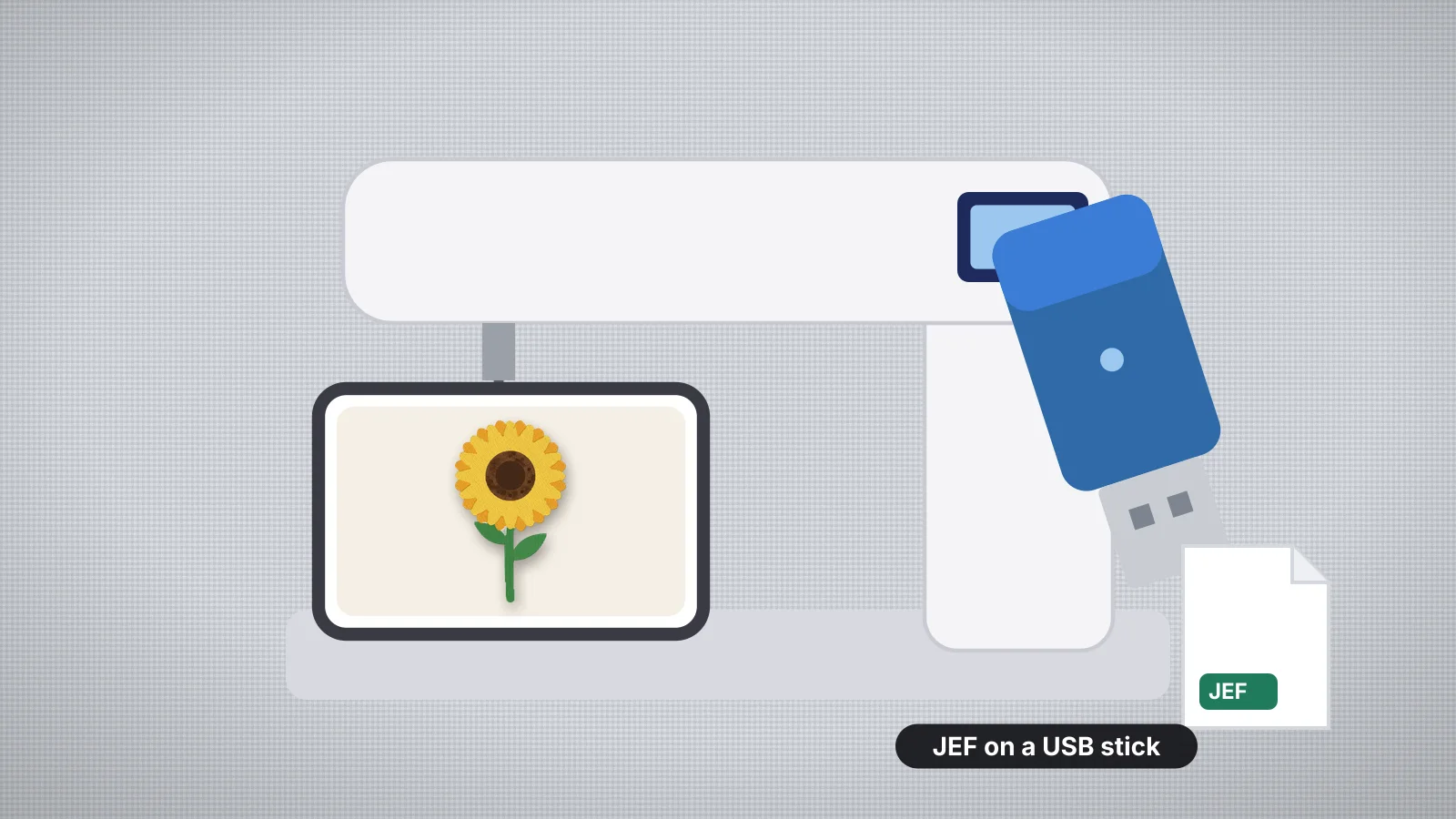
Janome embroidery machines run from the 5.5 × 5.5 in Memory Craft 230E to the 11 × 18.1 in Continental M17 and the MB-7 multi-needle. Almost all of them load designs the same way: a JEF file on a USB stick, opened from the embroidery screen. A few models add a USB cable to a computer or wireless transfer from Janome's apps.
This guide covers the formats Janome machines read, setting up the stick, size limits by hoop, the wireless and cable options and what to check when a design won't show. The machine facts come from Janome's instruction books and the specs on the Janome machines page. For Brother, see transferring designs to a Brother machine.
Which file formats does a Janome machine read?
Every current Janome embroidery machine reads JEF, so JEF is the format to use. A JEF file stores the stitches, a Janome palette number for each thread color and a code for the hoop size. Newer models also open JEF+ and JPX, and some read DST. The format list is in the manual's section on opening a file.
| Format | What to know |
|---|---|
| JEF | Janome's standard format, also read by Elna machines built on the same platform. Stores Janome thread colors and a hoop size |
| JEF+ | An editable Janome format written by Janome's software. Current models such as the Memory Craft 550E and Continental M17 open it |
| JPX | JEF+ with a background picture. The 550E and M17 manuals also list JPX files for AcuFil quilting, and the M17 for Cutwork |
| DST | Listed for the Memory Craft 550E, Skyline S9, Horizon Memory Craft 14000 and 15000, Continental M17, MB-7 and MB-4Se. It carries no thread colors, so the machine assigns Janome colors when it opens the file |
| SEW | The format of the older Memory Craft 5700, 8000 and 9000. Convert it with SEW to JEF for a newer machine |
Several popular models don't list DST at all. The Memory Craft 400E reads JEF and JEF+, the Memory Craft 500E adds JPX, and the Memory Craft 230E reads JEF only. None of the Janome models on this site lists PES or VP3, so convert those designs before you copy them: PES to JEF for Brother files, VP3 to JEF for Husqvarna Viking and Pfaff files.
How to set up a USB stick for a Janome
- Use a stick of 64 GB or less. The Continental M17 manual recommends 64 GB or under, and Janome gives 16 GB as the largest stick for the Memory Craft 500E. A small stick kept just for embroidery is the safe choice on any model.
- Format it as FAT32 or FAT16. Current Janome manuals say the machines support these two formats only, and the Memory Craft 550E manual describes formatting on a Windows PC: right-click the stick in File Explorer, choose Format, pick FAT32 and an allocation unit size of 64 kilobytes or less. On a Mac, Disk Utility's Erase with MS-DOS (FAT) gives a FAT stick. Formatting erases the stick, so copy off anything you need first. If a stick stops working, many models can also reformat it from their settings screen.
- Plug it straight into the machine. The 550E and M17 manuals say not to use a USB card reader or a USB hub.
- Unzip the download and copy only the .jef file. A machine can't open a ZIP, and the other formats in it only make the list longer.
- Folders are fine on current models. The Memory Craft 550E, Memory Craft 9850 and Continental M17 open folders on the stick: press the folder icon to go into one. The machine saves its own designs in a folder named Embf.
- Eject the stick from your computer, plug it into the machine, switch to embroidery mode, press the open file key, choose the USB icon, open the folder and press the design.
Some older Janome models only list designs that sit in a particular folder on the stick. If an older machine shows an empty stick while a new one reads it, check the USB section of its manual, or format the stick on the machine, save one design to it and copy your JEF files into the folder the machine created.
Try it with your own design
Sign up free, upload an image and get a stitch preview in under a minute.
Drop your image here
PNG, JPG, SVG, PDF or AI · stays on your device
Not sure what to expect? See real examples or how it works.
How big a design can each Janome sew?
A design can be no bigger than the hoop you select, and the largest hoop a model takes sets its limit for one hooping. The Memory Craft 550E manual says you can't select a design larger than the selected hoop in editing mode, and the Continental M17 sorts files by hoop size. So a design that seems to be missing is often waiting under a bigger hoop.
| Largest field | Janome models |
|---|---|
| 140 × 140 mm (5.5 × 5.5 in) | Memory Craft 230E |
| 170 × 200 mm (6.7 × 7.9 in) | Memory Craft 9850 and Skyline S9, with the RE20a hoop |
| 200 × 200 mm (7.9 × 7.9 in) | Memory Craft 400E, with the SQ20b hoop |
| 200 × 280 mm (7.9 × 11 in) | Memory Craft 500E, with the RE28b hoop |
| 200 × 360 mm (7.9 × 14.2 in) | Memory Craft 550E, with the RE36b hoop |
| 230 × 300 mm (9.1 × 11.8 in) | Horizon Memory Craft 14000 and 15000, with the GR hoop |
| 240 × 200 mm (9.4 × 7.9 in) | MB-7 and MB-4Se multi-needle machines, with the M1 hoop |
| 280 × 460 mm (11 × 18.1 in) | Continental M17, with the RE46d hoop |
Leave a few millimeters clear at each edge. The hoop size calculator checks a design against any hoop, and the design resizer scales a stitch file, safely within about 10 to 20 percent. A design bigger than your largest hoop can be cut into several hoopings with the design splitter.
Can you send designs to a Janome over Wi-Fi or a cable?
Yes, on some models. Wireless transfer and the USB cable link depend on the machine, so check which of these your model has:
- The AcuEdit app for iPad and Android tablets. Janome lists the Horizon Quilt Maker Memory Craft 15000, the Memory Craft 15000 and the Skyline S9 (sold as the atelier 9 in some countries) as compatible. The app edits JEF, JEF+ and JPX designs, including moving, rotating, resizing, changing thread colors and sewing order, and sends them to the machine over wireless LAN. The Skyline S9 also works with Janome's AcuMonitor and AcuSetter apps.
- Continental M17. It connects to a PC or Mac over wireless LAN or with its included USB cable, using Janome's Stitch Composer or Artistic Digitizer Jr. software. Its manual asks for a router that meets the 802.11b/g/n standard, and says to connect only one Janome machine at a time when you use the apps.
- USB cable models. The Memory Craft 550E has a Direct PC-Link: install Janome's Embroidery Editor and the machine's USB driver, connect the included cable and send designs from the PC. The Horizon Memory Craft 14000 and 15000, MB-7 and MB-4Se also come with a USB cable; the MB-4Se's PC link needs Janome's optional Digitizer MB software.
For most owners the USB stick is still the quickest route: it works on every Janome with a USB port and needs no network setup. Don't unplug the cable or turn the machine off during a transfer; Janome warns that it can lose data and damage the machine's memory. The embroidery machines with Wi-Fi list shows which models across brands have wireless.
What to check when a design won't show on a Janome
| Problem | Likely cause | Fix |
|---|---|---|
| The machine doesn't read the stick | Formatted as exFAT or NTFS, a very large stick, or a hub or card reader in between | Reformat as FAT32 or FAT16, use a smaller stick and plug it straight in |
| The stick opens but the design isn't listed | A PES, VP3 or EXP file, a design still in its ZIP, or a DST on a model that doesn't read DST | Unzip it and convert it to JEF |
| The design is listed but can't be selected | It's bigger than the hoop selected on screen | Select a larger hoop, or resize the design to fit with a margin |
| The colors on screen don't match | A DST file, which stores no colors, or colors from another brand's chart | Use the JEF version, or thread up from the color sheet |
| It shows on a new Janome but not an older one | A JEF+ or JPX file, or a folder the older model doesn't look in | Save a plain JEF and check the manual's folder rules |
| The machine says the file is damaged | A broken download, or a converter that wrote a wrong stitch count | Download it again, or convert the original once more with a reliable converter |
Embroidery file won't open on machine goes through every cause in more detail, and the machine compatibility checker tells you whether your model reads a file and whether it fits the largest field.
Practice on a free design
167 ready-to-sew designs in every machine format, free with an account.



Making JEF files for a Janome with Embrizo
To make a JEF from your own logo or artwork, upload a PNG, JPG, WebP, SVG, PDF or AI file to the Embrizo digitizer and choose JEF. It separates the colors, picks satin, fill or running stitch for each shape and adds underlay, pull compensation and tie-offs.
- Janome thread colors. Choose the 78-color Janome chart and each color is matched to the nearest Janome thread, so the machine screen shows close colors. You can swap any thread by hand.
- A hoop code. Each JEF is tagged with the smallest standard Janome hoop it fits (50 × 50, 126 × 110, 140 × 200 or 200 × 200 mm), so set the final size before you download.
- Trims and an exact stitch count. Embrizo writes JEF trim records, so a Janome set to trim on command cuts where it should, and the stitch count in the header matches the file.
- Designs you already have. The file converter turns PES, DST, EXP, VP3 or XXX into JEF, and also opens older SEW and JPX files. The batch converter does up to 50 files at once.
What it doesn't do: it doesn't write JEF+ or JPX, and it doesn't send designs over Wi-Fi, so you copy the file to your stick yourself. Digitizing and previews are free with an account; downloading the JEF needs a plan. The Janome collection of the free design library has designs ready to sew in JEF.