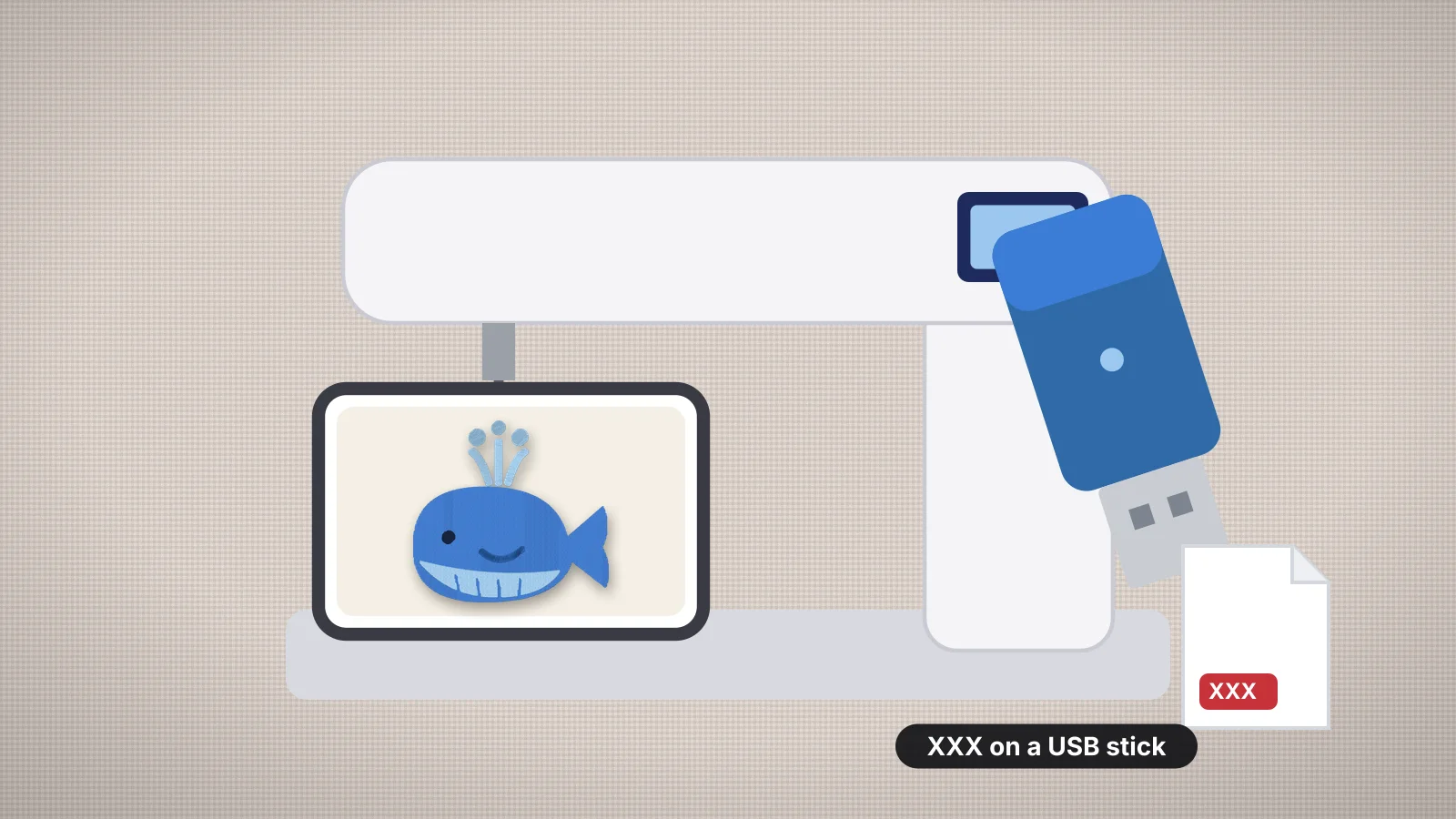
 Free toolMachine compatibility checkerPick your machine and drop a file: see if it reads the format and fits the hoop, and how to fix it if not.Open the tool
Singer has made several generations of embroidery machines, and they don't share one format. The Legacy SE300 family reads XXX, the SE9180 reads VP3 like its Husqvarna Viking and Pfaff sister brands, and the older Futura line works through software on a computer. Getting the format right is most of the job.
This guide sorts Singer machines by how they load designs, then covers the USB stick, hoop sizes, mySewnet Wi-Fi, the Futura cable link and what to check when a design won't show. Machine facts come from Singer's manuals and the Singer machines page.
Which format does my Singer embroidery machine need?
It depends on the machine family: Legacy and Superb models need XXX or DST, the SE9180 and SE9185 need VP3, and Futura machines take designs from Singer's Futura software. Find your model in the table before you convert anything.
| Machines | Formats | How designs get there |
|---|---|---|
| Legacy SE300, Legacy SE340, Superb EM200 | .xxx and .dst | USB stick; the machine ignores other formats |
| SE9180, SE9185 | .vp3 only | USB stick formatted as FAT32, or the mySewnet (CREATIVATE) cloud over Wi-Fi |
| Futura models such as the XL-400 | Designs opened in Singer's Futura software, which works with XXX | USB cable to a computer; the XL-400 doesn't load designs from a stick |
Copying an XXX file to an SE9180, or a VP3 to an SE300, is the most common reason a Singer shows an empty stick. If a design is in another format, convert it first: PES to XXX or DST to XXX for a Legacy model, PES to VP3 or JEF to VP3 for an SE9180.
How to prepare the USB stick
The same few rules work on every Singer that reads a stick, and they rule out most loading problems before you reach the machine:
- Format it as FAT32. The SE9180 and SE9185 need it, and it's the safe choice on Legacy models too. On Windows, right-click the stick in File Explorer, choose Format and pick FAT32; on a Mac, use Disk Utility, Erase and MS-DOS (FAT). Windows usually offers FAT32 only for sticks of 32 GB or smaller, another reason to keep a small stick for embroidery.
- Unzip downloads first and copy only the file your machine reads: .xxx or .dst for a Legacy, .vp3 for an SE9180.
- Use short, plain file names with letters, numbers, hyphens and underscores, so each design is easy to find on a small screen.
- Eject the stick before you unplug it from the computer. A Mac can leave hidden files starting with ._ next to your designs; ignore or delete them.
Try it with your own design
Sign up free, upload an image and get a stitch preview in under a minute.
Drop your image here
PNG, JPG, SVG, PDF or AI · stays on your device
Not sure what to expect? See real examples or how it works.
Legacy SE300, SE340 and EM200: XXX on a USB stick
These machines load .xxx and .dst files from the USB embroidery stick. The stick that comes in the box holds 131 of the machine's 200 designs, plus PDF files with design information, and you can add your own designs to it or use another stick.
- Back up the included stick by copying its contents to your computer, so the bonus designs and PDFs are safe.
- Copy your .xxx or .dst file to the stick. Unzip downloads first and copy only the file the machine reads. Folders are fine: the manual says to press a file or folder to open it.
- Insert the stick in the USB socket, press the Design button on the Home Screen and then the USB tab. The data list appears.
- Choose the design and press the check mark button. The embroidery placement screen opens.
- Attach the hoop the screen asks for. If the hoop selected on screen isn't the one attached, a Wrong Hoop Type message appears.
An empty mark means the stick or folder has no file the machine can read. An Embroidery Too Large message means the design is too big for the machine. XXX keeps the thread colors, while DST loads without them, so keep the color sheet with any DST design. These are single-needle machines, so the machine stops at every color change for you to rethread; a design with fewer colors sews faster.
SE9180 and SE9185: VP3 from a stick or the cloud
The SE9180 and SE9185 load embroidery files in the .VP3 format only, as their manual says. They read USB 2.0 and 3.0 sticks formatted as FAT32, and files on the stick can be reached only in embroidery mode.
- Format the stick as FAT32 and copy the .vp3 file to it.
- Plug it into the machine's USB port and switch to embroidery mode.
- Open the file manager, choose the USB device and touch the design to load it. The Save from USB function imports files from the stick into the machine's own storage, which is handy for designs you sew often.
The manual's Wi-Fi and mySewnet section applies only to the SE9180 and SE9185. Once the machine is on Wi-Fi and signed in to a mySewnet account, it syncs a mySewnet cloud folder. On a PC or Mac, the complimentary mySewnet cloud sync tool links a folder on your computer to the cloud, so a VP3 you drag into that folder appears on the machine. Singer now sells these services as CREATIVATE (formerly mySewnet), and the cloud storage you get depends on the membership.
Singer's own pages disagree about the SE9180. Its product page lists Wi-Fi through CREATIVATE for downloads, updates and transferring designs, while the FAQ on the same page says it isn't Wi-Fi enabled for design transfer and uses a USB stick. Plan on the stick, and treat the cloud as a bonus once you've seen it work on your machine.
Singer Futura: designs from the computer
Futura machines don't pick designs from a stick on their own screen. The XL-400 comes with a USB cable and Singer's Futura software: you open or create the design in the software on a computer and send it to the machine from there.
- Install the Futura software that came with the machine on the computer, following the manual.
- Connect the machine to the computer with the USB cable and attach the embroidery unit and hoop.
- Open the design in the software (an XXX file works), check its size against the hoop and send it to the machine.
The Futura software was written for older versions of Windows, so check Singer's support pages for a version that runs on your computer before you buy a used Futura. Embrizo can write the XXX file; the Futura software still does the sending.
Singer hoop sizes and design limits
| Model | Hoops (sewing field) |
|---|---|
| Legacy SE300 and SE340 | 260 × 150 mm (10.25 × 6 in) and 100 × 100 mm (4 × 4 in) |
| Superb EM200 | 260 × 150 mm (10.25 × 6 in) and 100 × 100 mm (4 × 4 in) |
| SE9180 and SE9185 | 170 × 100 mm (6.7 × 3.9 in); some bundles add 40 × 40 mm and 100 × 100 mm hoops |
Size the design for the hoop you'll use, with a margin. In the large Legacy hoop, keep a design within about 240 × 140 mm with its long side along the 260 mm side. The digitizer's 6×10 preset is 160 × 260 mm, a little wider than Singer's 150 mm, so type the size yourself. In the SE9180's 170 × 100 mm hoop, about 160 × 90 mm leaves room at the edges. The hoop size calculator checks any size.
What to check when a Singer design won't show
| Problem | Likely cause | Fix |
|---|---|---|
| A Legacy model shows an empty mark | No .xxx or .dst file on the stick or in that folder | Convert the design to XXX and copy it again |
| An SE9180 shows nothing on the stick | The file isn't VP3, the stick isn't FAT32, or the machine is in sewing mode | Convert to VP3, reformat the stick as FAT32 and switch to embroidery mode |
| Embroidery Too Large | The design is bigger than the machine's field | Resize it, or split it into hoopings |
| Wrong Hoop Type | The hoop selected on screen isn't the one attached | Attach the hoop the screen shows, or change the selection |
| The colors look wrong | A DST file, which stores no colors | Use the XXX or VP3 version, or thread up from the color sheet |
| Nothing opens at all | The design is still in its ZIP | Unzip it on your computer and copy only the machine file |
Embroidery file won't open on machine covers every cause in more detail, and the machine compatibility checker tells you whether your Singer reads a file and whether it fits.
Practice on a free design
167 ready-to-sew designs in every machine format, free with an account.



Making XXX and VP3 files with Embrizo
To make a file from your own logo or artwork, upload it to the Embrizo digitizer and choose XXX for a Legacy or EM200, or VP3 for an SE9180 or SE9185.
- Colors that carry over. XXX stores an RGB color for each color block and VP3 stores the exact color and thread name, so the machine shows the design in the colors you chose.
- Every format in one go. If you're not sure what a machine reads, the All formats ZIP holds XXX, VP3, DST and the rest, and you copy the one your manual names.
- Your own size. Type the width and height for Singer's hoops instead of using a preset, and the file never exceeds the size you set.
- Files you already have. The file converter turns PES, JEF, DST or EXP designs into XXX or VP3.
It doesn't send files over Wi-Fi or into the CREATIVATE cloud, and it doesn't make Futura software files, so you copy the file to your stick or sync folder yourself. Digitizing and previews are free with an account; downloading files needs a plan.